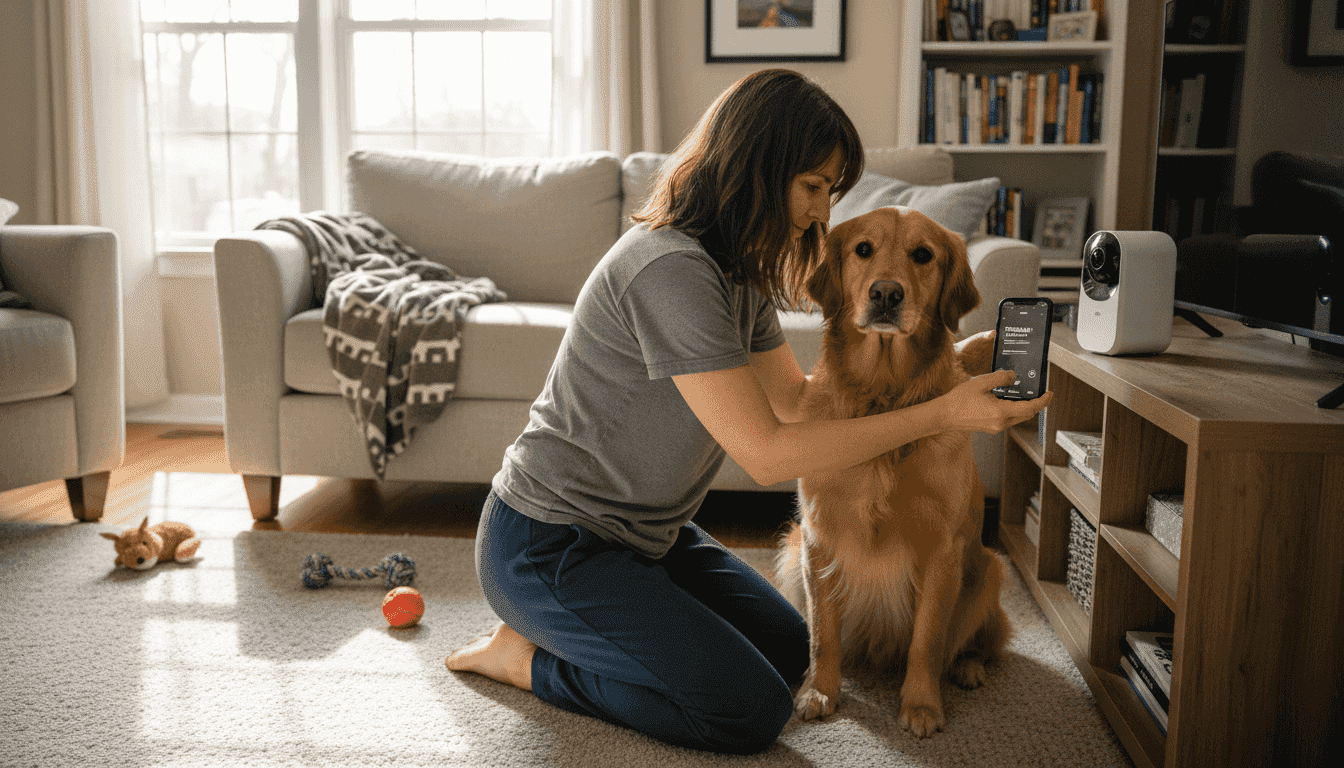
Leaving your dog home alone can be tough, especially when you notice signs of stress or anxiety every time you walk out the door. For tech-savvy American pet owners, finding ways to ease separation anxiety with smart two-way audio pet cameras has become a practical solution. By choosing and setting up the right device, you gain real-time interaction and peace of mind, helping to comfort your furry companion while keeping you connected no matter where you are.
Table of Contents
- Step 1: Choose and Set Up a Smart Pet Camera
- Step 2: Connect Your Device to the Pet Camera App
- Step 3: Test Two-Way Audio Functionality
- Step 4: Train Your Pet to Respond to Audio
- Step 5: Monitor and Adjust for Best Results
Quick Summary
| Key Insight | Explanation |
|---|---|
| 1. Choose the Right Camera | Select a smart pet camera with essential features like two-way audio and night vision for optimal monitoring. |
| 2. Connect the Companion App | Download the official app, create an account, and pair your smartphone with the camera for effective monitoring. |
| 3. Test Audio Functionality | Ensure clear audio communication by testing volume and response; it helps reduce anxiety for your pet. |
| 4. Train Your Pet to Respond | Use positive reinforcement and calm interactions to help your pet adjust to audio communication effectively. |
| 5. Monitor and Adjust Settings | Regularly assess and tweak camera settings based on your pet’s behavior to improve interaction quality. |
Step 1: Choose and Set Up a Smart Pet Camera
Selecting and setting up a smart pet camera is your gateway to seamless remote pet interaction and enhanced home monitoring. The right device will help you stay connected with your furry friend, providing peace of mind and opportunities for real-time engagement.
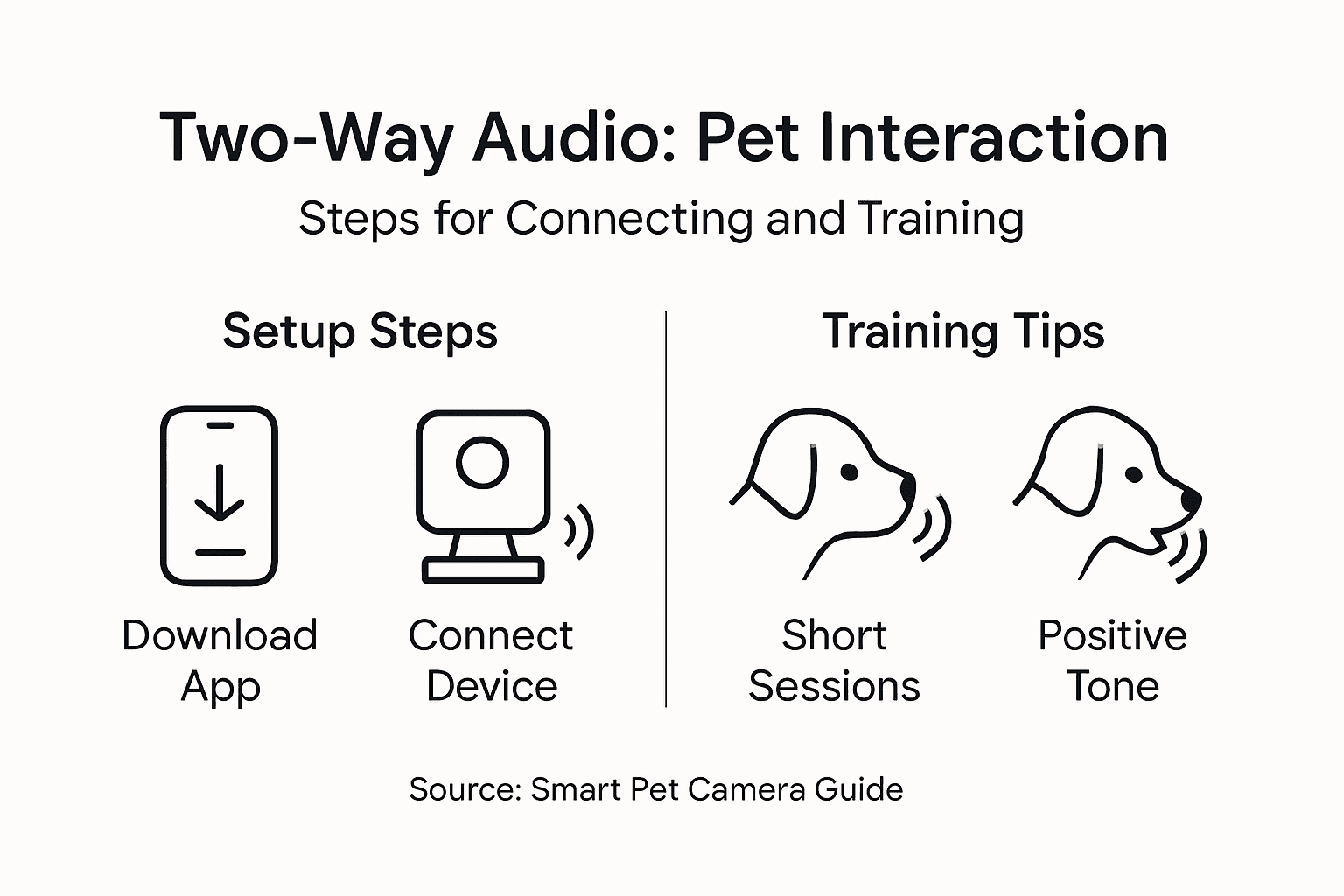
When choosing a smart pet camera, focus on key features that enable effective monitoring and interaction. Look for devices with two-way audio capabilities that allow you to hear and speak to your pet remotely. Consider these essential criteria:
- High-quality video resolution for clear visual monitoring
- Two-way audio communication
- Motion detection alerts
- Night vision capabilities
- Wide-angle lens for broader room coverage
The setup process involves several straightforward steps. Start by selecting a camera location that provides an unobstructed view of your pet’s primary living area. Ensure the camera is positioned at a height and angle that captures your pet’s movements without creating blind spots.
Connect your smart pet camera to your home Wi-Fi network by following the manufacturer’s companion app instructions. Most modern devices require simple pairing through Bluetooth or direct Wi-Fi connection, making the process user-friendly and quick.
Strategic camera placement is crucial for effective pet monitoring and interaction.
Download the companion app to your smartphone, which will serve as your primary interface for controlling the camera, receiving alerts, and initiating two-way audio communication. Each app offers unique features, so explore its full capabilities to maximize your remote pet interaction experience.
Pro tip: Test your camera’s positioning and audio quality before leaving your pet alone to ensure smooth, uninterrupted monitoring and communication.
Step 2: Connect Your Device to the Pet Camera App
Connecting your smartphone to the pet camera app is a critical step in establishing seamless remote monitoring and interaction with your furry friend. This process transforms your mobile device into a powerful tool for pet care and communication.
Begin by downloading the companion app from your smartphone’s app store, ensuring you choose the manufacturer’s official application. Most pet camera apps are available for both iOS and Android platforms, designed to provide a user-friendly interface for managing your device.
The connection process typically involves these key steps:
- Create a user account within the app
- Enable Bluetooth or Wi-Fi on your smartphone
- Follow the app’s on-screen pairing instructions
- Verify the camera connection
Ensure your camera and smartphone are connected to the same Wi-Fi network during the initial setup. This allows for seamless communication and prevents potential connectivity issues. Most apps will guide you through a step-by-step wizard that simplifies the technical aspects of device pairing.
Proper app configuration is essential for reliable remote pet monitoring.
After successful connection, explore the app’s features like live streaming, two-way audio, motion alerts, and potential treat dispensing functions. Take time to customize your settings and understand the full range of capabilities your smart pet camera offers.
Here’s a quick reference comparing common smart pet camera app features and their user benefits:
| App Feature | User Benefit | Example Use Case |
|---|---|---|
| Live Streaming | Immediate visual check-in | View pet during work hours |
| Two-Way Audio | Real-time interactive communication | Comfort a pet remotely |
| Motion Alerts | Quick notification of activity | Spot unexpected behavior |
| Treat Dispensing | Remote reward or distraction | Give treats mid-day |
| Camera Control | Adjust view for better coverage | Find pet hiding spots |
Pro tip: Keep your app and camera firmware updated to ensure optimal performance and access to the latest features.
Step 3: Test Two-Way Audio Functionality
Testing the two-way audio feature of your smart pet camera is crucial for ensuring seamless remote communication with your furry companion. This step allows you to verify the clarity and responsiveness of the audio system, which can be a lifeline for pets experiencing separation anxiety.
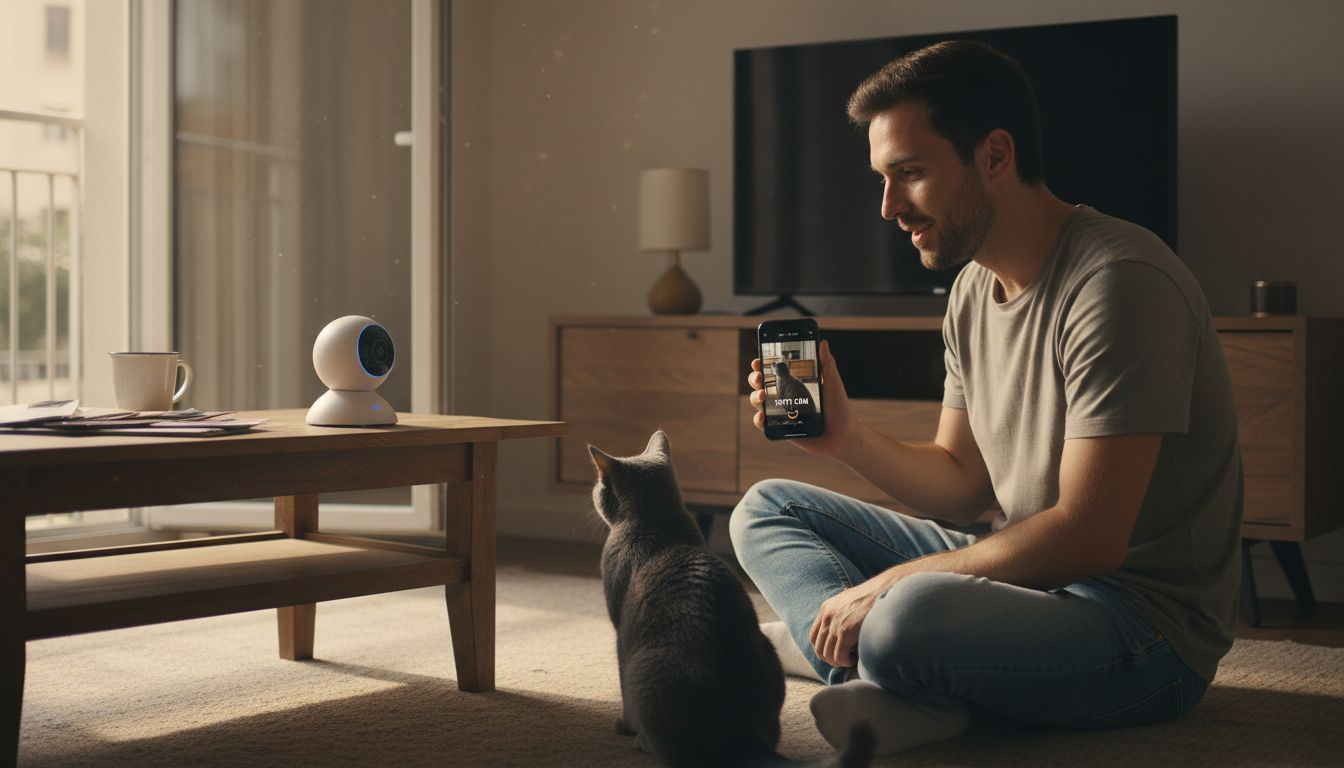
Begin by testing audio communication channels through your pet camera app. Open the live video feed and locate the audio interaction button, which typically appears as a microphone or speaker icon within the app interface.
Key steps for comprehensive audio testing include:
- Speak clearly into the microphone
- Listen for your pet’s response
- Check for any audio delays or distortions
- Test volume levels from both directions
- Verify sound clarity in different room areas
Conduct multiple test scenarios to ensure consistent performance. Try speaking from different distances and angles, paying attention to how your pet responds to your voice. Some pets might be startled initially, so use a calm and soothing tone during initial interactions.
Consistent and clear communication is the key to effective remote pet interaction.
If you notice any audio issues such as static, lag, or poor sound quality, consult your camera’s user manual or contact the manufacturer’s customer support. Many modern pet cameras offer noise reduction and sound enhancement technologies to improve communication.
Pro tip: Practice short audio interactions during initial testing to help your pet become comfortable with the remote communication experience.
Step 4: Train Your Pet to Respond to Audio
Training your pet to interact with two-way audio technology requires patience, consistency, and positive reinforcement. By helping your pet understand and respond to remote communication, you can create a meaningful connection even when you’re away from home.
Begin by understanding audio interaction techniques with your specific pet’s personality and temperament in mind. Some animals may be more receptive to audio communication than others, so tailor your approach accordingly.
Effective training strategies include:
- Use a consistent, calm voice tone
- Start with short audio interactions
- Reward positive responses with verbal praise
- Practice during calm moments
- Gradually increase interaction duration
Create positive audio associations by linking your remote voice with enjoyable experiences. For instance, speak softly and follow up with a treat dispensed through the camera, or use your voice to invite your pet to a favorite resting spot.
Gentle, predictable audio interactions build trust and comfort with remote communication.
Pay close attention to your pet’s body language during audio interactions. Some pets might seem confused or anxious initially, so monitor their reactions and adjust your approach. Move slowly and avoid sudden or loud sounds that could startle them.
Pro tip: Practice audio interactions during times when your pet is relaxed and receptive, gradually building their comfort with remote communication.
Step 5: Monitor and Adjust for Best Results
Optimal remote pet interaction requires ongoing monitoring and strategic adjustments to your two-way audio system. Successfully managing your pet camera setup involves carefully observing your pet’s responses and fine-tuning technological settings to enhance communication effectiveness.
Pet camera monitoring techniques should focus on understanding your pet’s unique behavioral patterns and comfort levels with remote interactions. Pay close attention to how they respond to audio cues, camera movements, and unexpected sounds.
Key monitoring and adjustment strategies include:
- Review camera feed regularly
- Analyze your pet’s body language
- Check audio volume and clarity
- Adjust motion detection sensitivity
- Reposition camera for optimal viewing
Customize notification settings to match your pet’s specific behavior and your monitoring preferences. Some pets might be easily startled by frequent alerts, while others remain calm and unaffected.
Small, incremental adjustments can significantly improve remote pet interaction quality.
Pay special attention to audio interaction patterns and how your pet responds to different tones, volumes, and communication styles. Some pets might prefer soft, gentle voices, while others might be more responsive to more enthusiastic communication.
For readers seeking to improve remote pet interaction, see how monitoring adjustments impact success:
| Adjustment Type | Typical Impact | When to Use |
|---|---|---|
| Audio Volume Tuning | Reduces stress, improves recognition | If pet startled by loud sounds |
| Camera Repositioning | Enhances room coverage | If pet often out of frame |
| Motion Sensitivity Change | Decreases false alerts | If too many notifications |
| Notification Settings | Minimizes disruptions | For pets sensitive to movement |
Pro tip: Create a weekly review schedule to systematically assess and refine your pet camera’s performance and your pet’s comfort level with remote communication.
Enhance Your Remote Pet Interaction Experience Today
Struggling to keep your pet calm and connected while you are away is a common challenge many pet owners face. This article outlines how using two-way audio with your pet camera can bridge the distance and ease separation anxiety. If your goal is to enjoy clear, real-time communication and monitor your pet’s wellbeing from anywhere, understanding smart pet camera features like motion detection, treat dispensing, and high-quality audio is essential.
Discover expert reviews and detailed comparisons on the best devices designed to meet these needs in our Pet Cameras section. With insights on video clarity, night vision, and interactive functions, you can confidently choose the perfect technology to fit your pet’s personality and home environment.
Ready to transform how you connect with your furry friend remotely Explore comprehensive guides and trusted reviews on modernpettech.com and unlock the full potential of your pet monitoring devices. Start creating a happier, safer space for your pet today by visiting our Health & Wellness Tech page for the latest innovations in treat-dispensing and calming tech.
Take the first step toward stress-free remote pet care now.
Frequently Asked Questions
How can I test the two-way audio feature on my pet camera?
To test the two-way audio feature, open the live video feed in your pet camera app and locate the audio interaction button. Speak clearly into the microphone and listen for your pet’s response, checking for any audio delays or distortion.
What are effective ways to train my pet to respond to audio from a pet camera?
Train your pet by using a consistent and calm voice tone during audio interactions. Start with short communication sessions, rewarding your pet with praise when they respond positively to your voice.
How should I position the smart pet camera for the best audio interaction?
Position the camera at a height and angle that captures your pet’s primary living area while avoiding blind spots. Ensure it has a clear line of sight to your pet to maximize audio and visual monitoring effectiveness.
What should I do if my pet shows anxiety during remote audio interactions?
If your pet shows anxiety during audio interactions, try to create positive associations by rewarding them after successful communication. Speak softly and calmly, and gradually increase the complexity of your audio interactions as your pet becomes more comfortable.
How can I customize notification settings for better pet monitoring?
Customize your notification settings based on your pet’s behavior and comfort level to minimize stress. This might include adjusting motion detection sensitivity or the type of alerts you receive for different activities.
How do I monitor my pet’s reactions to audio communication over time?
Regularly observe your pet’s body language and reactions during audio interactions to assess their comfort level. Create a review schedule to analyze any changes and make adjustments to your approach as needed.
Recommended
- Two-Way Audio: Enhancing Pet Camera Interaction
- Role of Two-Way Audio in Pet Cameras: Impact on Anxiety
- Wireless Pet Cameras Explained: Monitoring Pets Remotely
- How to Use Night Vision Cameras for Pet Monitoring
